


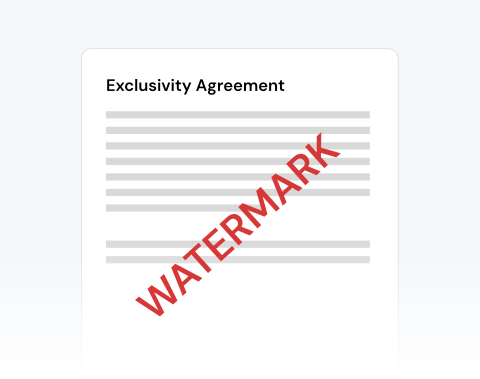

Secure PDF watermarking
Our security measures include file encryption and deleting your documents from our servers after your work is completed. Rest assured that our platform is a secure place to watermark your PDF.
Ajoutez un filigrane à votre PDF en un clin d'œil !

ou glissez-déposez

Chiffrement SSL - Prend en charge les PDF jusqu'à 100 Mo et les autres formats et extensions jusqu'à 25 Mo
Read on to learn how to add a watermark to a PDF and make your documents more secure and professional.
Upload your document to our site to begin
Click the watermark option in the toolbar and place your watermark on the document
Adjust the text, font, size, opacity, color, and placement until it fits your needs
Download the finished file to your drive
Our security measures include file encryption and deleting your documents from our servers after your work is completed. Rest assured that our platform is a secure place to watermark your PDF.

You can add a watermark to a PDF using any device, browser, or operating system. Our platform works on Macs, PCs, tablets, and smartphones! You can access the tool seamlessly on Chrome, Safari, Microsoft Edge, Firefox, and Opera.

You don’t need to worry about the layout and formatting of your PDF. The only change will be the addition of the watermark. Our platform maintains all other elements of the document.

Upload your own watermark or create one via our toolbar. Position it where you want on the PDF, alter the size, and edit it as you please. Take advantage of all the tools at your disposal!

You couldn’t ask for a more user-friendly interface! Upload, add your watermark, and download the finished copy in minutes with our streamlined process. It’s that simple!

Whatever your purpose, you can trust MergedPDF’s tools to get the job done! We have everything you need to easily add or create a custom watermark for any document.

Commencez par créer un compte pour modifier, convertir, compresser et diviser facilement vos fichiers !
Everything you need to know about adding watermarks to PDFs.
Oui, notre outil pratique vous permet d'ajuster le texte, la police, la taille, l'opacité, la couleur et la position du filigrane sur votre document.
Personnalisez simplement le filigrane jusqu'à ce qu'il réponde à vos besoins, puis cliquez sur « Convertir » pour l'ajouter à votre fichier.
Si vous avez ajouté un filigrane à votre document mais que vous souhaitez maintenant le supprimer, cliquez simplement sur l'option Supprimer dans le coin droit de la barre d'outils.
Vous pouvez ensuite ajouter un autre filigrane ou apporter d'autres modifications à votre fichier.
L'ajout d'un filigrane à un document vous permet de protéger et d'identifier la propriété intellectuelle. Un filigrane sert également de rappel visible de l'identité du créateur d'origine.
Oui, notre outil ajoute automatiquement votre filigrane personnalisé à chaque page de votre document. Cela vous évite d'avoir à ajouter manuellement chaque filigrane vous-même, ce qui vous permet d'économiser du temps et des efforts.

